Connecting Twilio Flex (beta)
Erlangly connects to Twilio Flex itself. It reads TaskRouter's event log every 5 seconds, for adherence and the wallboard, and counts your queues' volumes every 15 minutes, for forecasting, with the last 30 days when you first connect: that's all Twilio keeps. It only reads, and it connects out to Twilio, so nothing on your network has to be reachable from the internet. It's marked beta until more customers run it: if anything looks wrong, the connection's page has a diagnostics file to send us.
Twilio lists a change in its event log about 15 seconds after it happens, so the wallboard follows Flex about 15–20 seconds behind. Adherence uses the time each change happened.
1. In Twilio: a restricted API key
- In the Twilio Console, switch to your Flex account. Flex makes an account of its own: its Account SID, starting
AC, is on its Console home page. - Settings → API keys & auth tokens → Create API key, in the region United States (US1), named Erlangly, of the type Restricted.
- Under TaskRouter, tick only these read permissions: workspaces (list, read), activities (list), workers (list, read), tasks (list), tasks' reservations (list), task queues (list) and events (list). The key can then read your agents, activities, tasks and TaskRouter's events, and nothing else: no calls, messages or recordings.
- Copy the key's SID, starting
SK, and its secret. The secret is shown only once.
2. In Erlangly: connect
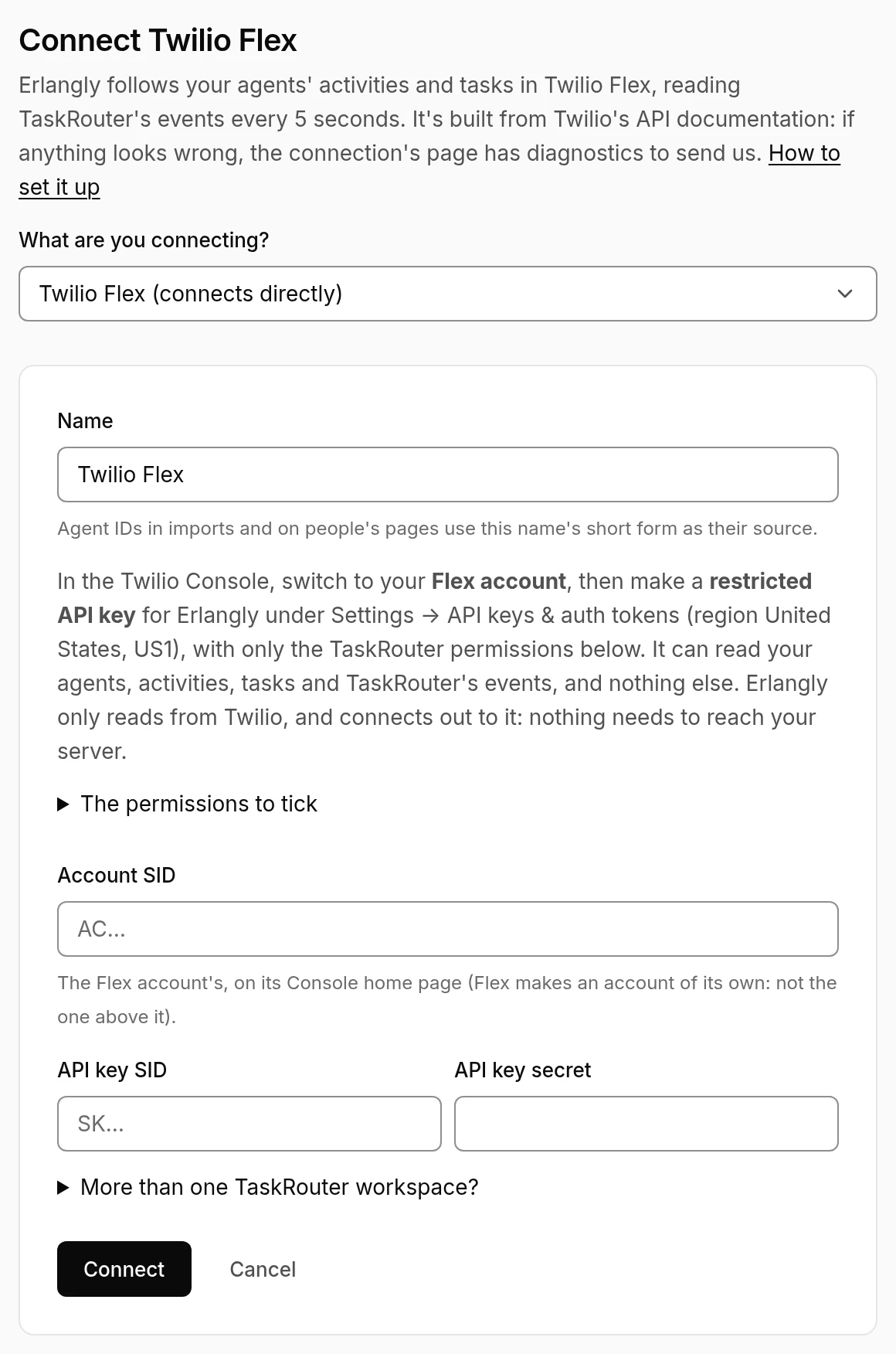
- Settings → Connections → Add a connection → Twilio Flex. Paste the Account SID, the key's SID and its secret, each in its own box. Erlangly finds Flex's workspace by itself, and checks the key can read what it needs before saving.
- State codes: an agent holding a task is On a task (On a call) or Wrapping (After-call work). Otherwise they're in their Flex activity: Available → Available, Break → Break, Offline → Offline, and Unavailable and your own activities by name. Someone who goes Offline shows Offline, even with a task left wrapping. Check them, and change any that mean something else on your floor.
- Agents link by email the first time, from the email Flex keeps for each agent. Anyone else shows up under the connection to link by hand.
- Queues: each TaskRouter queue is listed once for each channel it carried (calls, chats and texts, email, other work), so each can feed its own line of business. Erlangly counts each task when it first enters a queue: offered, handled, handle time (talk, hold and wrap-up) and abandons. A transferred task counts once, and outbound calls aren't counted. The last 30 days are read straight away; import anything older with the volume import.
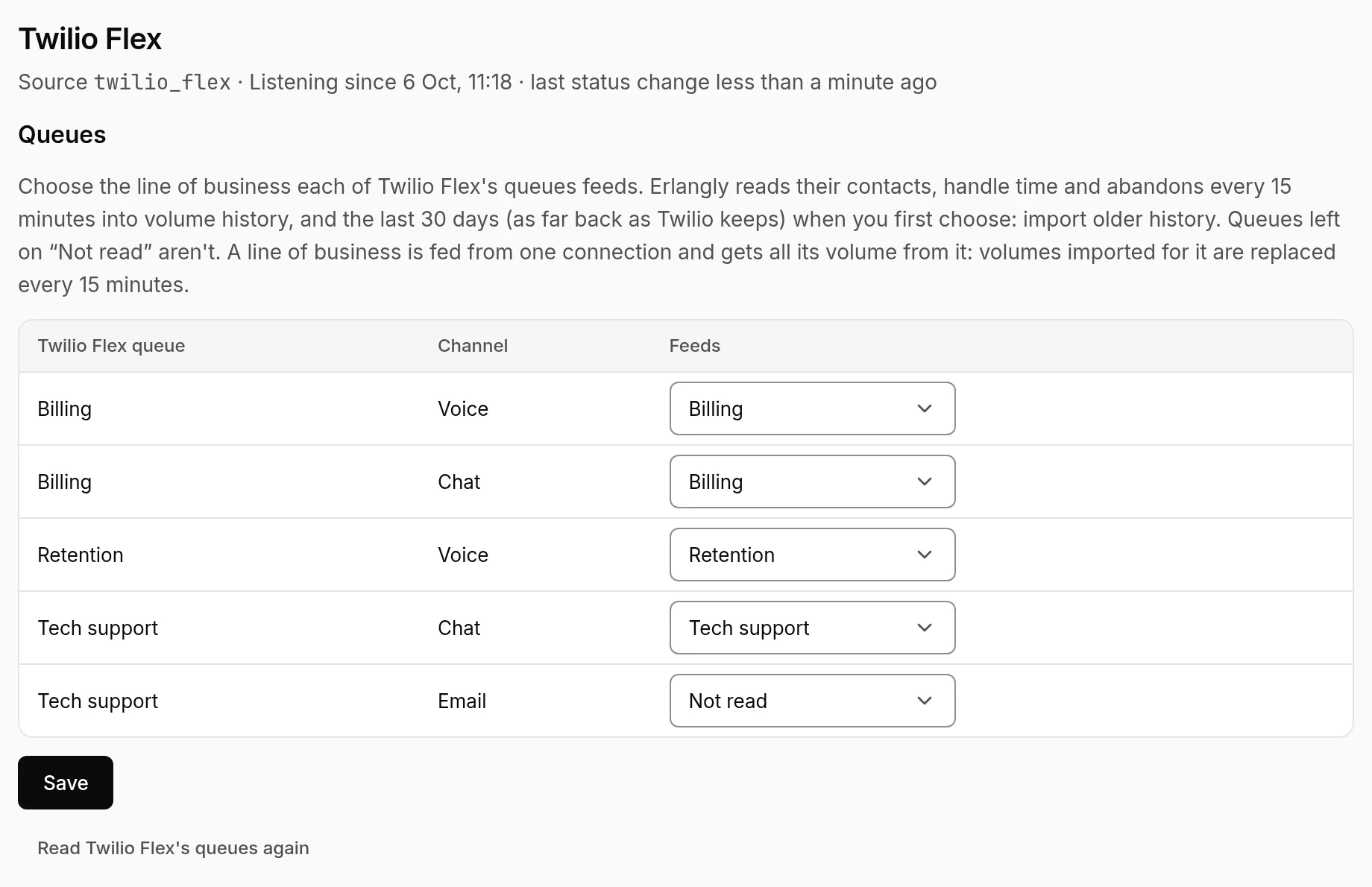
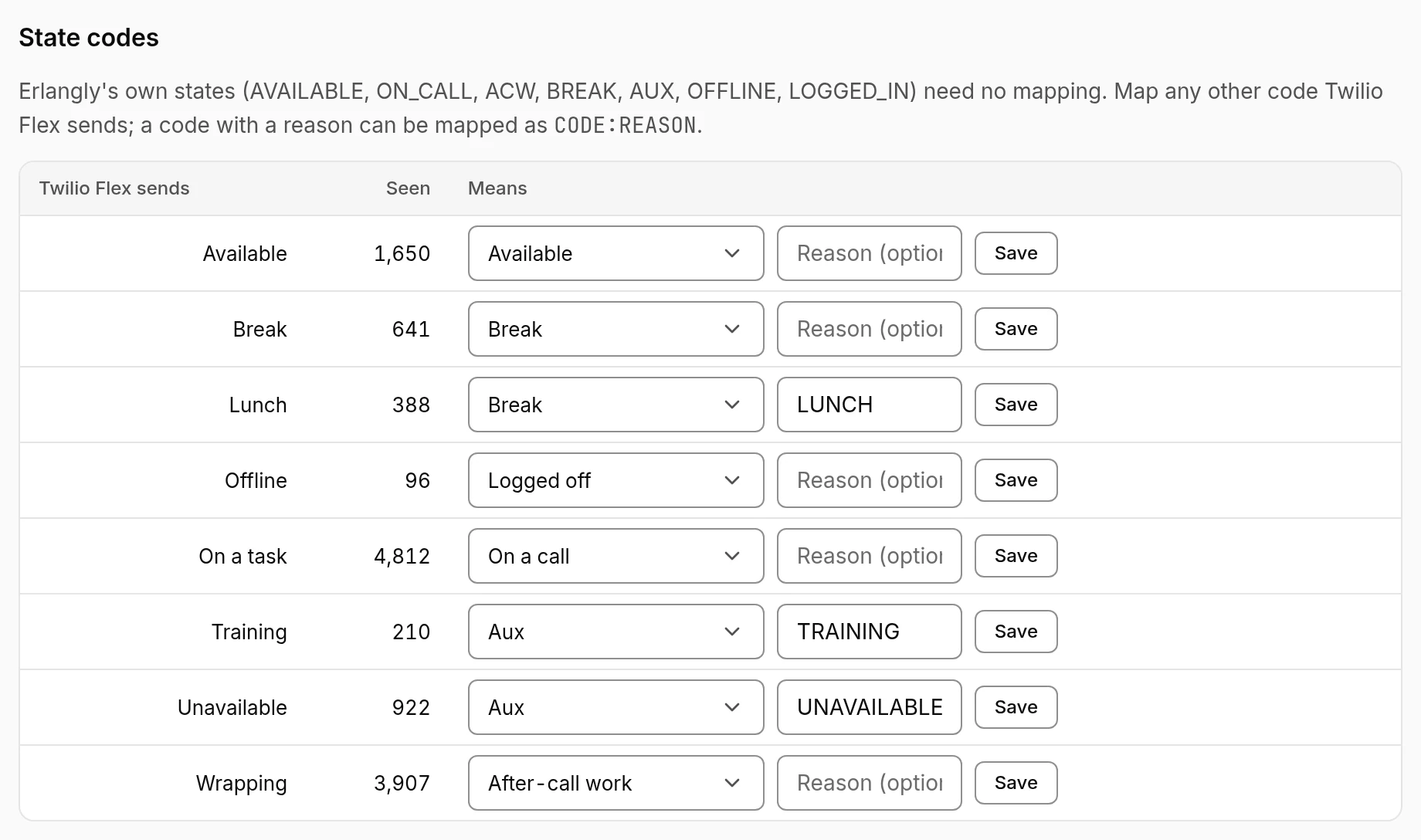
The connection's page shows whether Erlangly is following Flex, when the last change came, and what Twilio sent (names, emails and callers' details masked). If Twilio refuses the key or a permission, it says which, and keeps trying. After a restart, Erlangly reads back the events it missed, so adherence has no gap.