Connecting Zoom Contact Center (beta)
Erlangly connects to Zoom Contact Center itself: it listens to your agents' statuses as they change (for adherence and the wallboard) and reads your queues' volumes every 15 minutes (for forecasting), with the last 13 weeks when you first connect. It only reads, and it connects out to Zoom, so nothing on your network has to be reachable from the internet. It's built from Zoom's API documentation and marked beta until more customers run it: if anything looks wrong, the connection's page has a diagnostics file to send us.
1. In Zoom: make a Server-to-Server OAuth app
The app works as the Zoom user who makes it. So make it as someone with a Contact Center licence and a Contact Center admin role, whose Zoom role allows Server-to-Server OAuth apps (User Management → Roles → Advanced features), ideally an account that won't be deactivated. If that person's role changes later, Zoom takes the app's admin scopes away.
- In the Zoom App Marketplace: + → Build an app → Server-to-Server OAuth app → Create, named Erlangly. On Information, fill in a short description, the company name and a developer contact: Zoom needs them to activate the app.
- Scopes, all read-only:
contact_center:read:list_users:admin,contact_center:read:user:admin,contact_center:read:list_system_statues:admin(Zoom spells it so),contact_center:read:list_queues:adminandcontact_center:read:queue_report:admin. They let Erlangly read your users, statuses, queues and queue totals, and nothing about callers or recordings. An app made before March 2024 shows Zoom's older names instead:contact_center_user:read:admin,contact_center_preference:read:admin,contact_center_queue:read:adminandcontact_center_report:read:admin. - Feature → Event subscription: turn it on, name it Erlangly, choose the WebSocket method, and add the event Contact Center → User status changed. Save, and copy the WebSocket address it shows.
- Activate the app, and copy its Account ID, Client ID and Client secret.
2. In Erlangly: connect
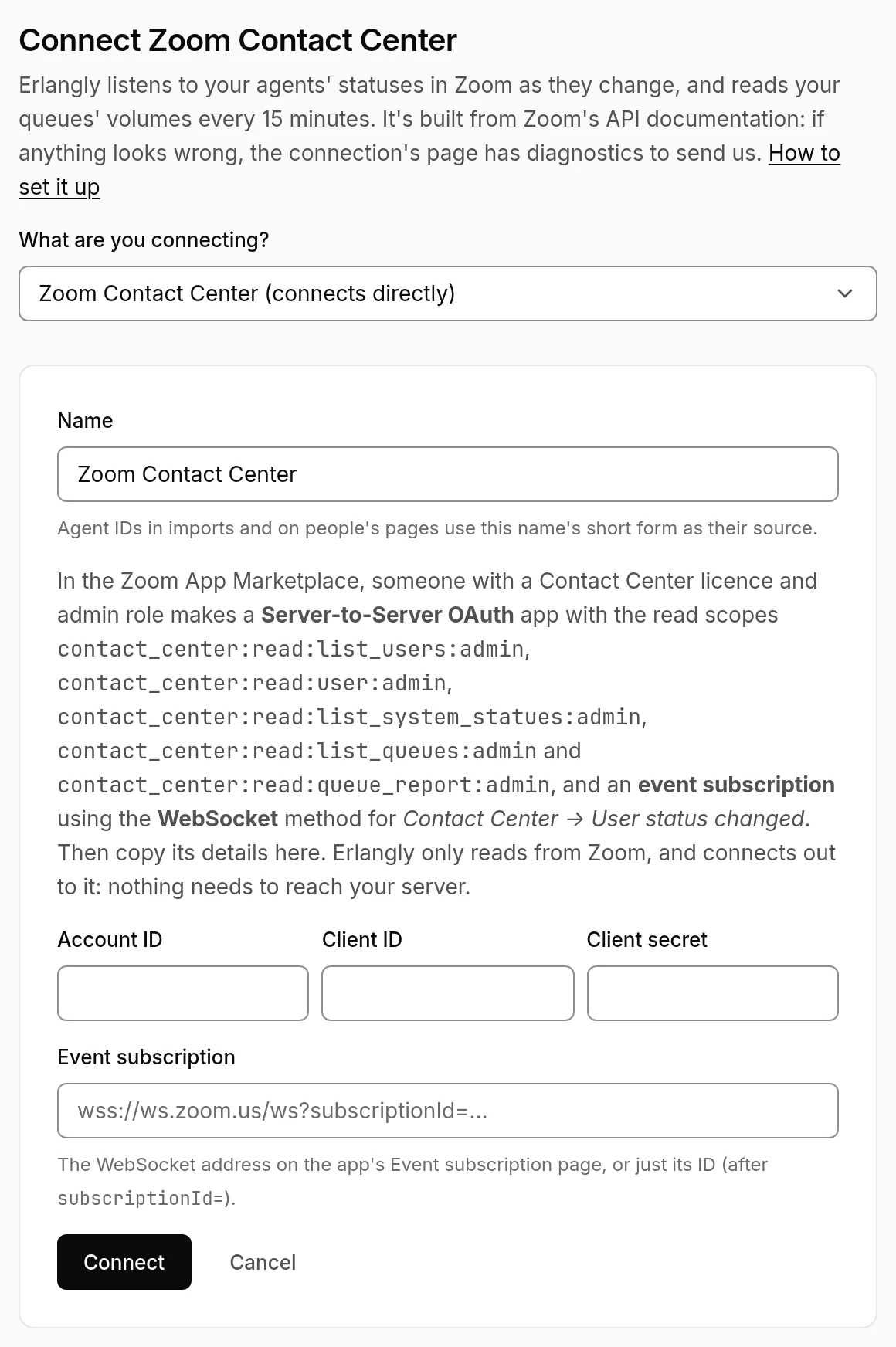
- Settings → Connections → Add a connection → Zoom Contact Center, and paste the three credentials and the WebSocket address (or just the ID after
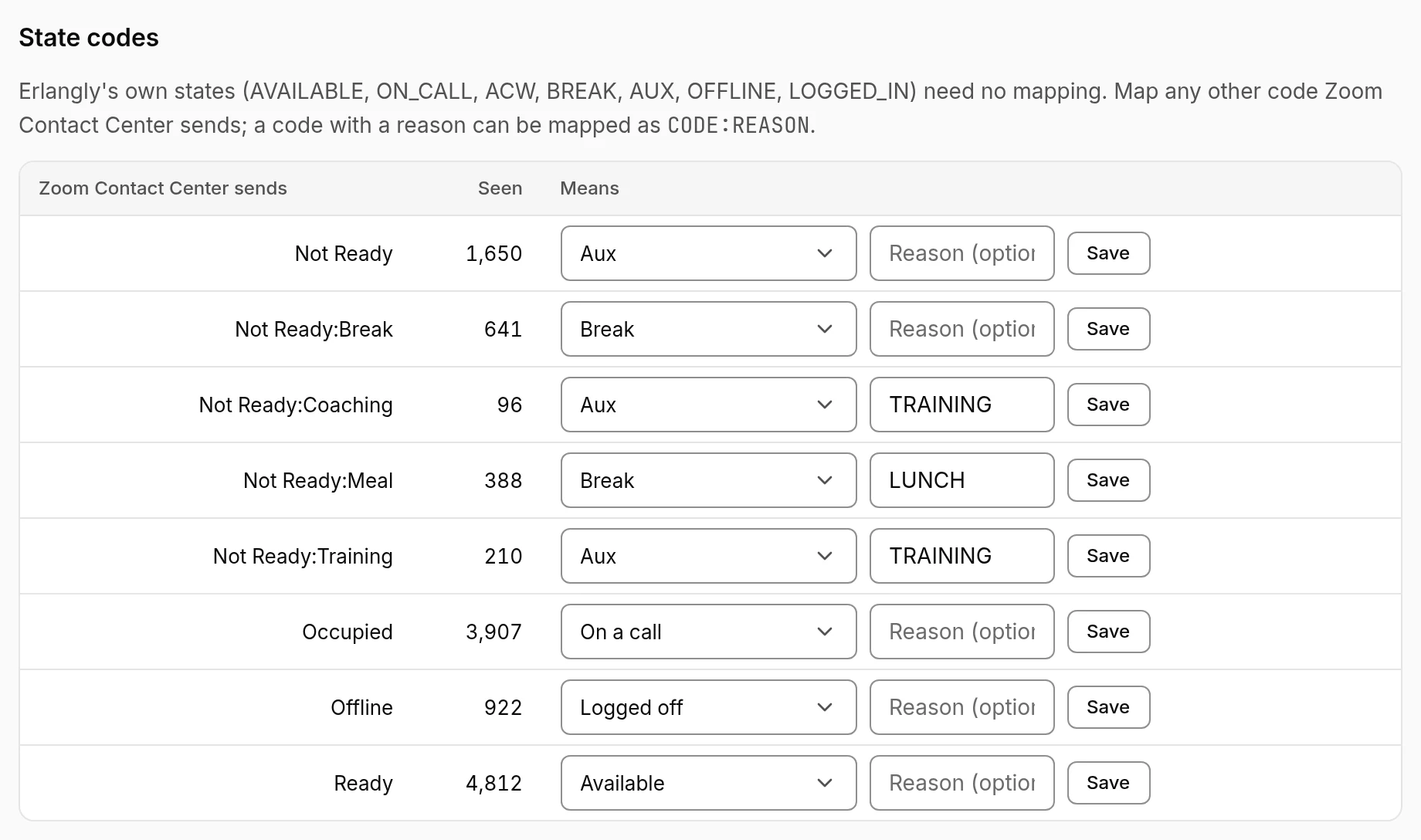
subscriptionId=). Erlangly checks them with Zoom before saving, then opens the event subscription: reload the connection's page after a minute to see whether Zoom accepted it. - State codes: Zoom's statuses and Not Ready reasons come mapped by their names (Ready → Available, Occupied → On a call, Not Ready: Meal → Lunch, Not Ready: Break → Break…). Check them, and change any that mean something else on your floor. Zoom counts wrap-up time as Occupied, so after-call work shows as On a call for now.
- Agents link by email the first time: someone active in Erlangly with the same email as in Zoom. Anyone else shows up under the connection to link by hand.
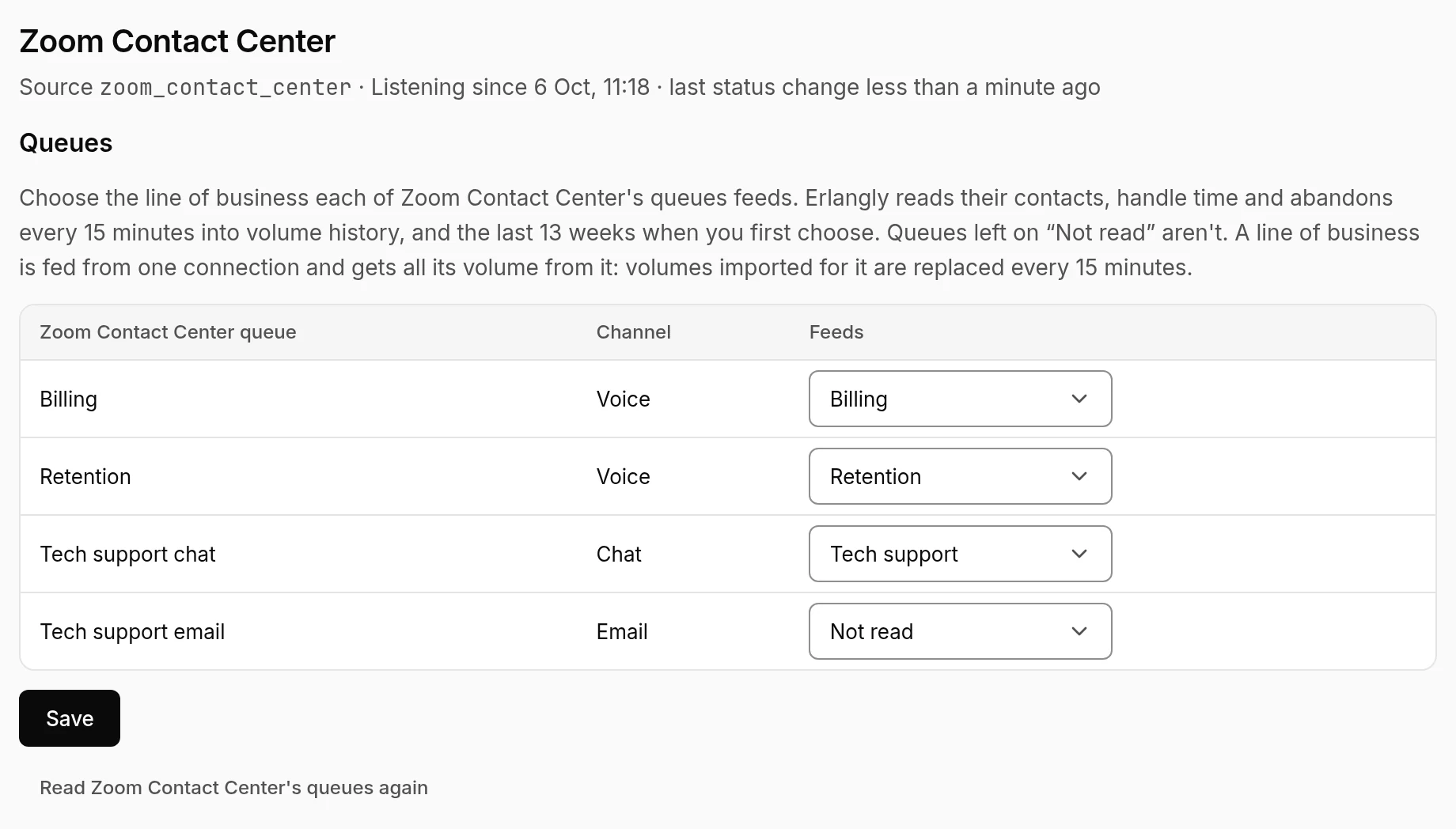
- Queues: choose the line of business each Zoom queue feeds. Erlangly reads their last 13 weeks straight away, then every 15 minutes. Work-item queues are listed but not read: Zoom's queue report covers voice, video, messaging and email.
The connection's page shows whether Erlangly is listening, when the last status change came, and what Zoom sent (people's emails and names masked). If Zoom refuses the connection, it says why, and keeps trying.