Scheduling
Erlangly generates a schedule from your published forecasts: shifts that cover the agents needed in each interval, for the people on each line of business, within their contracts, availability, time off and labour law. You choose a draft, adjust it, and publish it to agents.
Before you start
- A published forecast for each line of business, covering the weeks you're scheduling. See Forecasting and staffing. On a day none of a person's lines of business has a forecast for, nobody's needed, so they're not scheduled then.
- Shift patterns for each line of business: the shapes shifts may take. See Shift patterns below.
- People on their lines of business, with their contract hours and, where it matters, their availability.
- Whose labour law applies, under Settings → Organisation, and per site or per person if it differs.
The Schedule page's Start here checklist shows what's still missing.
Shift patterns
A shift pattern says when shifts may start, how long they run, and where breaks go. Set them up under Settings → Shift patterns.
- Days: the weekdays it's used on.
- Starts: the earliest and latest start, and the step between them, like every 15 minutes from 07:00 to 13:30.
- Length: one length, or a range with a step, like 4 to 6 hours every 30 minutes.
- For: full time, part time or temporary staff, and the lines of business that use it.
- Breaks, lunch and other activities: each has a length and a window, counted after the start or before the end. Each says whether it's paid, and which shifts it's for, by length. Erlangly places each one in its window at the time that costs the least coverage.
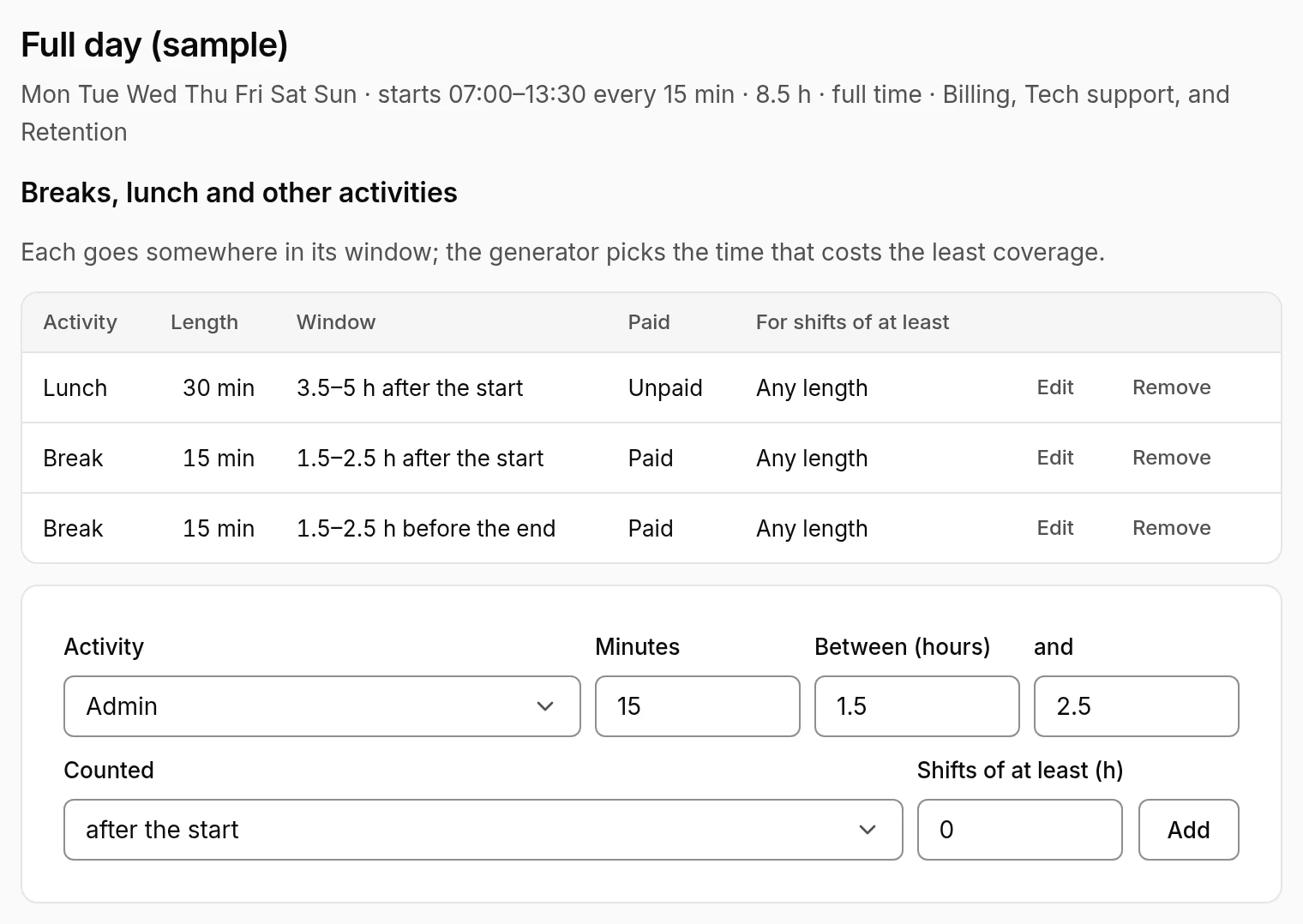
Keep starts and lengths inside the hours your forecast needs people. If they run outside them, the draft says so: Billing: 211 h scheduled when the forecast needs nobody, mostly 06:00–07:00.
Contracts, availability and time off
- Contract hours: each person's minimum and maximum hours a week, and their days a week. A blank figure uses the default for their employment type. Full time is 40 hours over 5 days; part time, 16 to 25 hours over 4 days; temporary, up to 40 hours over 5 days. A person's page shows which figures are defaults.
- Availability: availability marked binding is a hard limit, and nobody is scheduled outside it. Availability that isn't binding is a preference: generation doesn't use it.
- Approved time off: shifts avoid it. A day wholly off still gets the shift that day would have had, with the time off over it. It covers nothing, so the week keeps the person's contract days, and their days off stay days off.
Make a schedule
- Open Schedule and choose New schedule period.
- Choose the dates. A period is whole weeks, starting on your organisation's first day of the week.
- Choose Create and generate. The first draft is generated straight away, in the background. On a big floor it takes a few seconds.
How a draft is made
Week by week, Erlangly plans each person's shifts against what the floor still needs:
- The least flexible people first: those on the fewest lines of business, then those with the most days to fill. The people with the fewest options get the shifts that suit them.
- Each day's best shift: from the shift patterns their lines of business use, within their binding availability and around their time off.
- The days that add the most coverage first, up to their contract's days and maximum hours. Then it tops up to their minimum hours.
- One shift at a time: someone who works for another client too, or is already scheduled either side of the period, is planned around those shifts, with rest either side. Their hours and days there come off their week. See Several clients.
- Labour law is a hard limit: the rest between shifts (8 hours at least, or more where your labour law or a line of business asks for it), days in a row (6 at most, or fewer where your labour law says), and a weekly hours cap where your labour law makes it binding. The week before the period counts, so rest and days in a row carry on across it.
- Staffing beyond the need counts against a shift, so people go where they're short rather than piling up where they're not.
- Breaks and lunch go where coverage needs them least, within their windows.
- Then each person's week is planned again against everyone else's, to close the gaps the first pass left.
The whole draft is then checked against the labour rules: see Labour rules below.
Read a draft
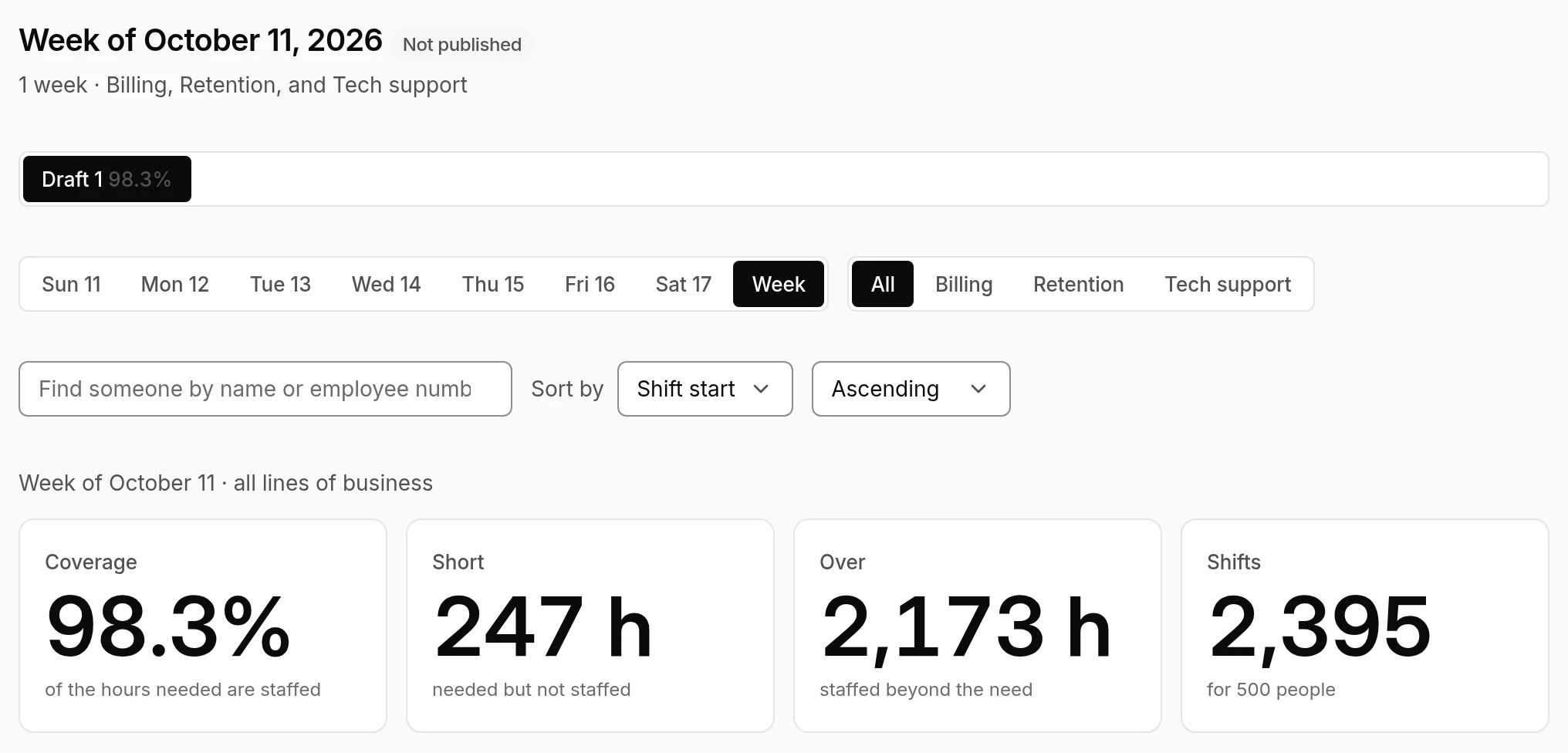
- Coverage: the share of the hours needed that are staffed. Short is hours needed but not staffed; Over is hours staffed beyond the need; Shifts is how many, for how many people.
- A week or a day, and all lines of business or one. Find someone by name or employee number, and sort the rows by shift start, shift end or name.
- Warnings above the figures say what generation couldn't do, or did on days with no forecast.
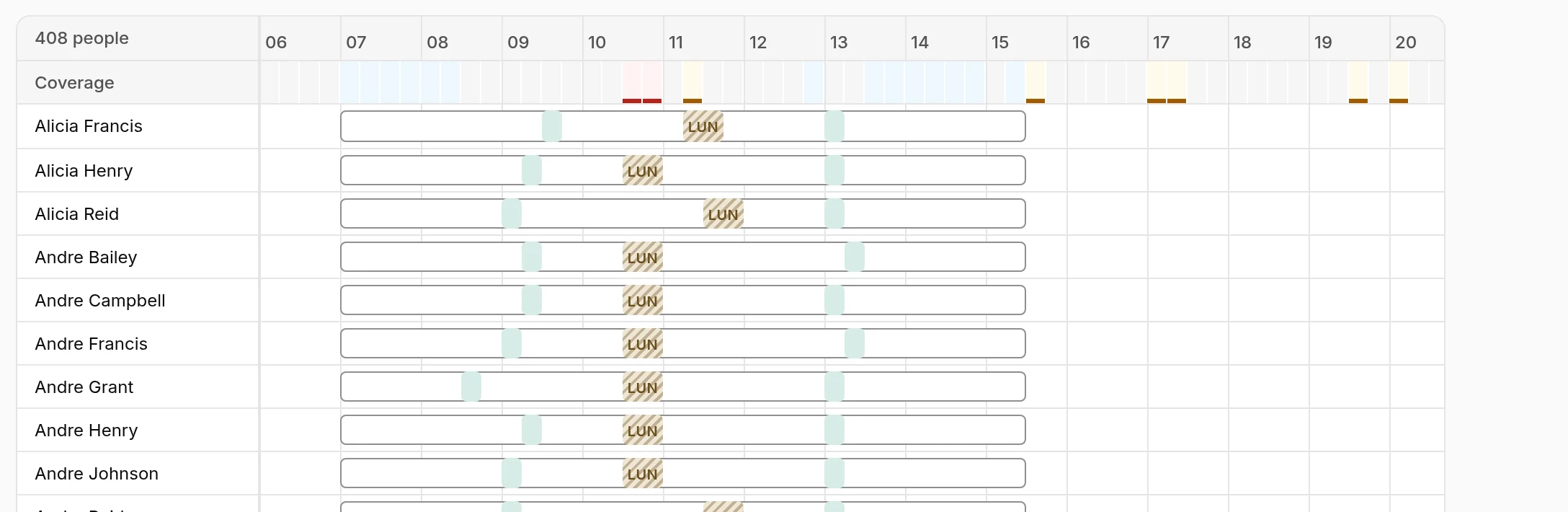
- The coverage strip colours each interval: red where it's under 90% of the need, amber between 90% and 100%, blue where it's over 125%, and plain otherwise.
- Each row is one person: their shift, its breaks, and lunch (striped when unpaid). Time off shows over the shift it covers.
- Click a shift to see its times, line of business and breaks, with Edit.
More drafts
- Generate another draft makes a new one from the latest forecasts, people and time off. With nothing changed, it comes out the same.
- For some lines of business… makes a draft for just those. Only their people are scheduled, around their shifts on the other lines.
- For some people… makes a draft for the people you tick, around everyone else's shifts: for someone moving to another line of business, say.
- Discard a draft you don't want.
When a forecast is republished or changed, or people's lines of business change after a draft was made, the schedule says it needs generating again, and why.
Use a draft
Use draft 1 makes it the schedule and discards the other drafts.
Once there's a schedule, a new draft takes over from a day you pick, the start of next week unless you change it. The days before stay as they are. A draft for some lines of business, or some people, replaces only their shifts from that day.
Change shifts
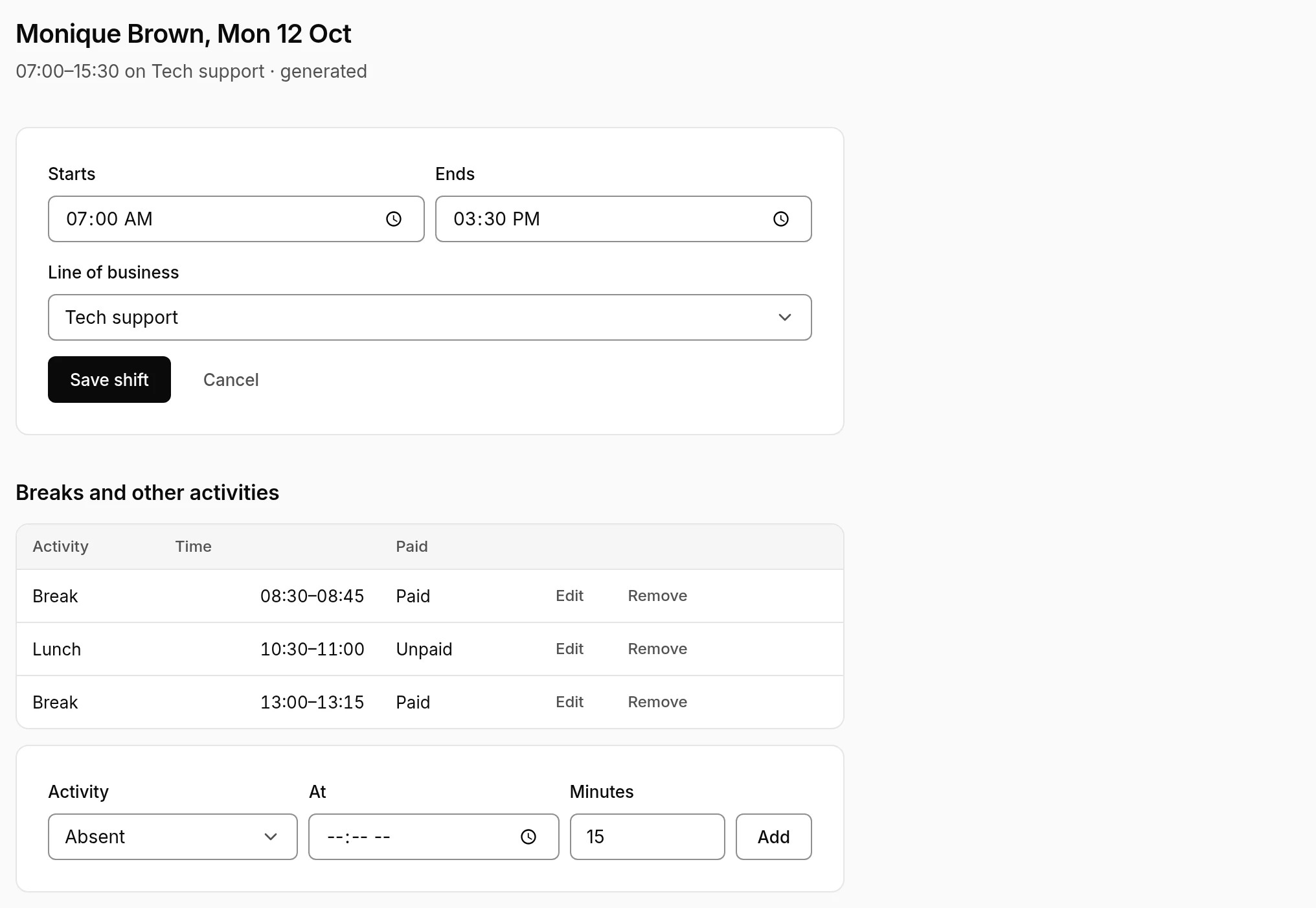
Choose a shift, then Edit:
- Change its start, end or line of business.
- Add, move or remove its breaks and other activities, like training or a meeting.
- Remove the shift, or Add a shift from the draft's page.
Every change is checked against the labour law for that person. A change that breaks a rule set as a violation isn't made, and says why. A change that breaks a warning is made only when you confirm it with Save anyway: your name, the warnings and your reason go in the audit trail.
Once a schedule is published, every change needs a reason, and the person is asked to look at their schedule again.
Labour rules
The Labour rules section of a draft lists what the latest check found: each issue's day, person and rule, with Open to go to the shift. It follows your edits.
- Violations must be fixed before publishing.
- Warnings can be published once you've seen them.
Check again checks the whole draft. Settings → Labour rules lists the rules in force for each jurisdiction. You can tighten any rule, and an admin can loosen one with a reason.
Publish
Publish to agents checks the schedule first: against labour law, and for anyone it puts in two places at once, like a shift over their shift for another client.
- Nothing in the way: it's published.
- Violations: it goes to a page that lists them, each with Open. Fix them, then publish again.
- Warnings: it shows them, with a box for your reason, and Publish anyway.
Agents then see their shifts in My schedule, on a phone too, and confirm them with Got it. With email set up, they're told it's published. The schedule's page shows how many people with a login have seen it.
Once it's published, Erlangly scores adherence against it, and the wallboard shows the floor against it right now.