Your schedule
Erlangly shows your shifts, breaks and time off, on your phone or a computer. This page is for agents: how to sign in, read your week, and let your supervisor know when your day doesn't go to plan.
Signing in
Your admin invites you. You get an email with a link, or they send you the link themselves. It works for 7 days.
- Open the link.
- Choose a password of 12 characters or more, and type it again.
- Choose Join.
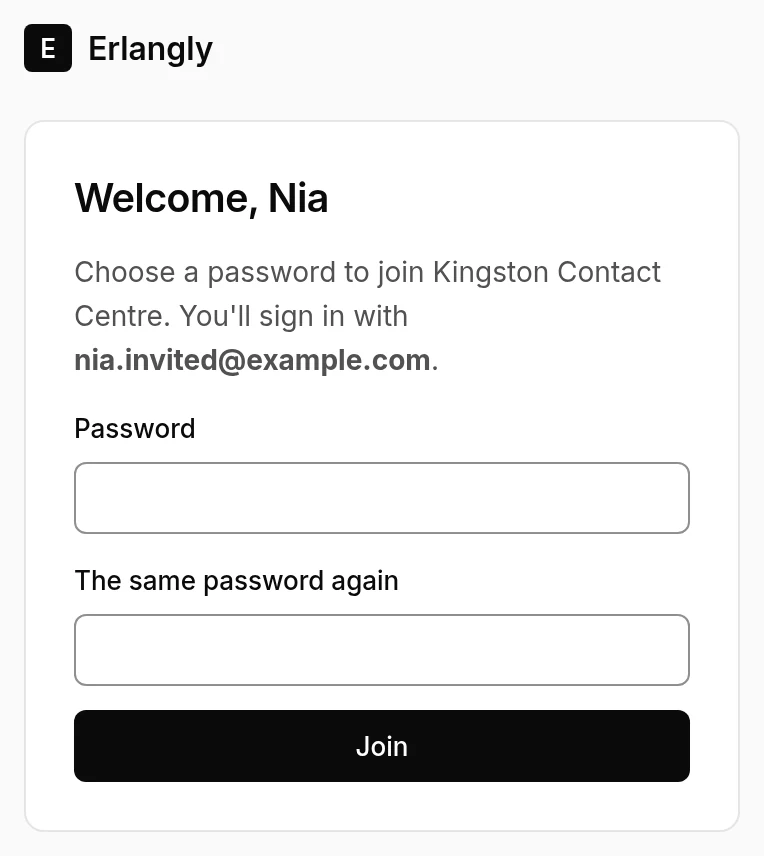
From then on, sign in at your company's Erlangly address with your email and password. If your company signs in with its own accounts, like Microsoft or Google, use that account: there's no Erlangly password to choose.
Forgotten your password? Choose Forgot your password? on the sign-in page. If your Erlangly can't send email, ask your admin for a reset link.
Your week
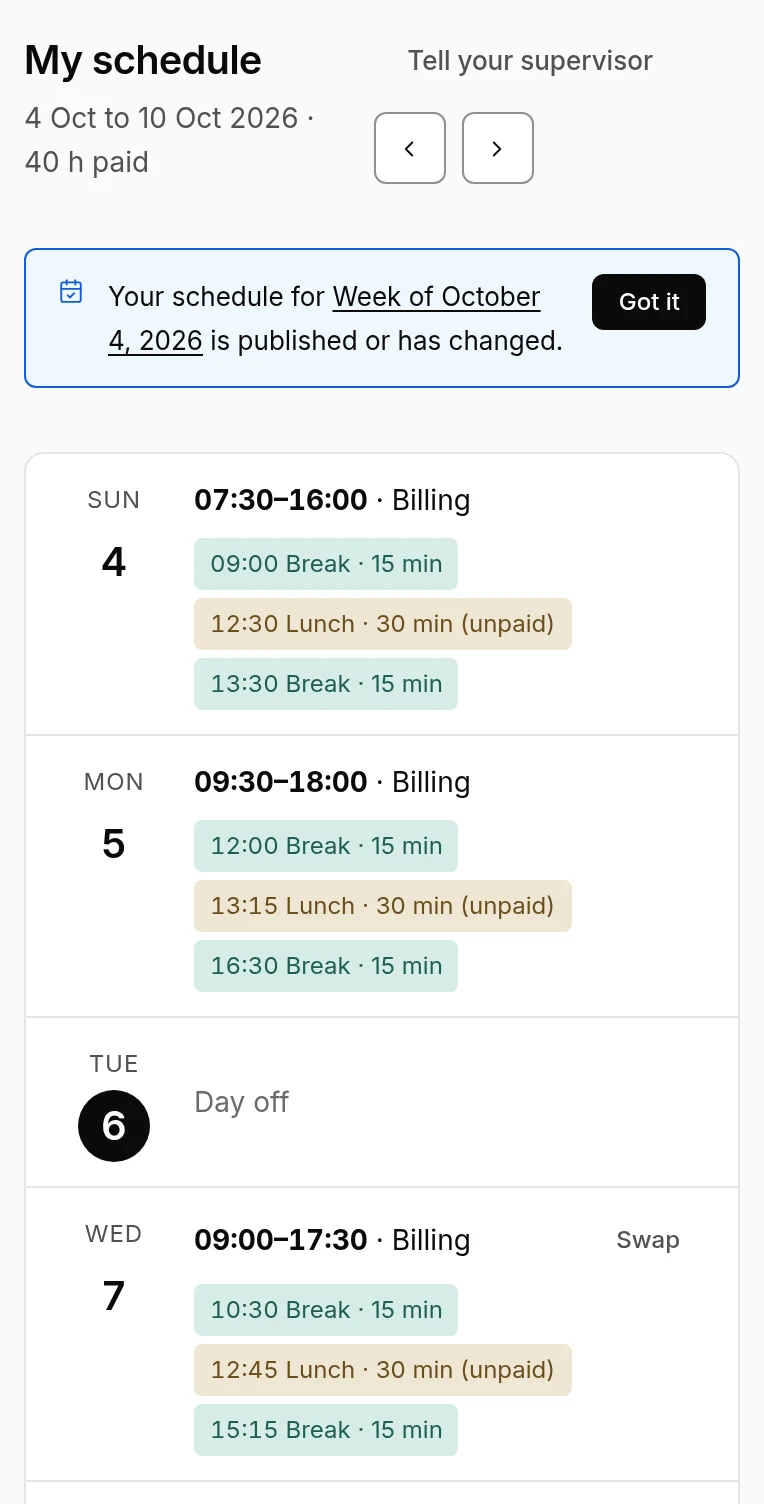
My schedule shows a week at a time:
- Each day's shift: its times and line of business, with your breaks, and lunch (marked unpaid when it is).
- Days off, and time off you've been given.
- The week's paid hours, at the top.
- The arrows move a week back or on; This week comes back to today.
When it's published or changes
When your schedule is published, or a shift of yours changes, a note at the top says so. Have a look, then choose Got it: it tells your supervisor you've seen it. With email set up, you also get an email when a new schedule is published.
Late, sick, or pulled into a meeting
Choose Tell your supervisor at the top of My schedule:
- What happened: absent, late, sick, an unplanned meeting, overtime or voluntary time off.
- The day, and from and until when.
- A note, if you like.
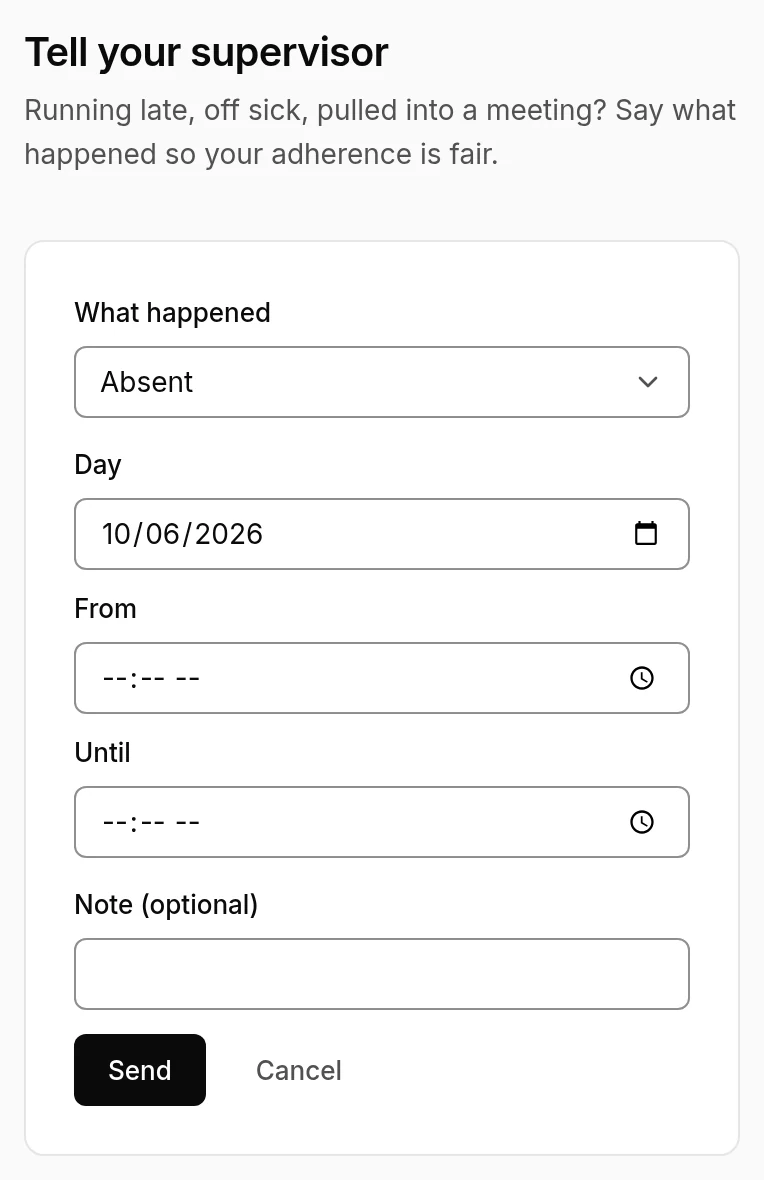
Once your supervisor approves it, your adherence counts what you actually did rather than only your schedule. If your company lets short ones count straight away, it says so when you send it. It shows on that day, with whether it's waiting, approved or declined.
Your account
On a phone, the person icon in the bar opens Your account; on a computer, your name at the bottom of the menu. There you can change your password and sign out.
Time off and swaps have their own pages: Asking for time off and Swapping a shift.